

Appearance
Read an interview report
Available onEvery plan
Who can do thisEveryone in the workspace can read reports
Every finished interview gets a report: a score and band, a short summary, a scorecard with the evidence behind it, the integrity checks and the answers. AI scores are decision support. A person at your company makes the hiring decision.
Open a report
- Open the job and click the candidate, or open Reports from the sidebar.
- Click the interview to open its report.
Live AI reports open from the candidate or from Interviews.
The parts of an AI interview report
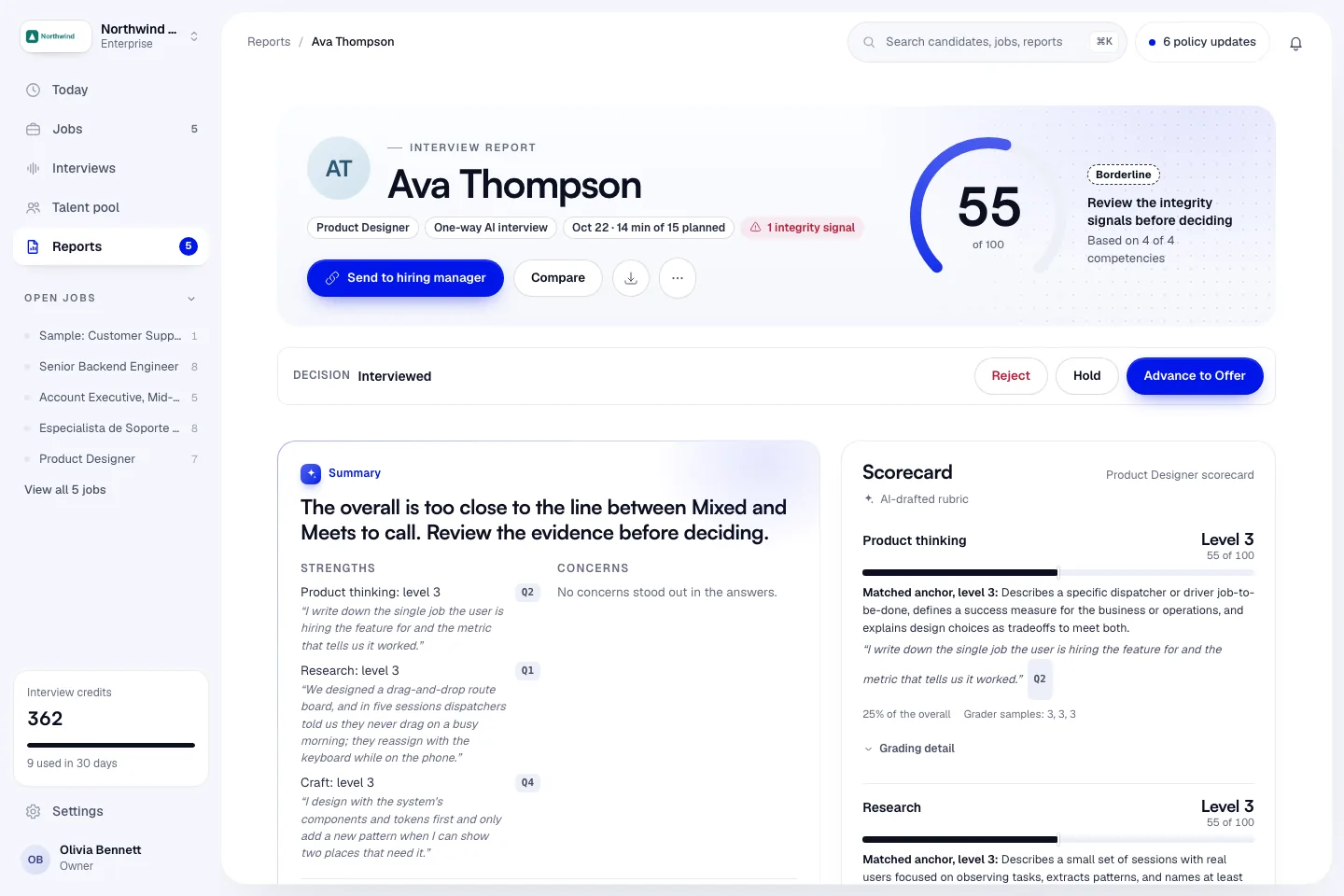
| Part | What it shows |
|---|---|
| Header | The score out of 100, the band (for example Meets), the suggested next step and the coverage line, such as Based on 5 of 6 competencies. A held report shows Insufficient evidence and no number. See Held reports. |
| Summary | Strengths, Concerns and Probe in the next round: questions to ask in the next interview. Full AI write-up opens the longer write-up. |
| Scorecard | One row per competency, with its level, the evidence quoted from the answer and the question it came from. A competency with no evidence says it was left out of the overall and the weights were rebalanced. See How scoring works. |
| Decision notes | The reasoning behind the suggested step, including Risk and integrity. |
| Integrity | The answers in order with any signals marked, then Integrity details with Checks performed, Response timing, Key findings and Recommended actions. See Integrity evidence. |
| Answers | Every question with the candidate's answer, its sub-scores and the recording. |
Recording links expire after 15 minutes. Reload the page to play them again.
A sample report is labelled Sample. A report from an interview you took yourself to try it is labelled Self-test. Neither counts in your usage or analytics.
How a Live AI report is different
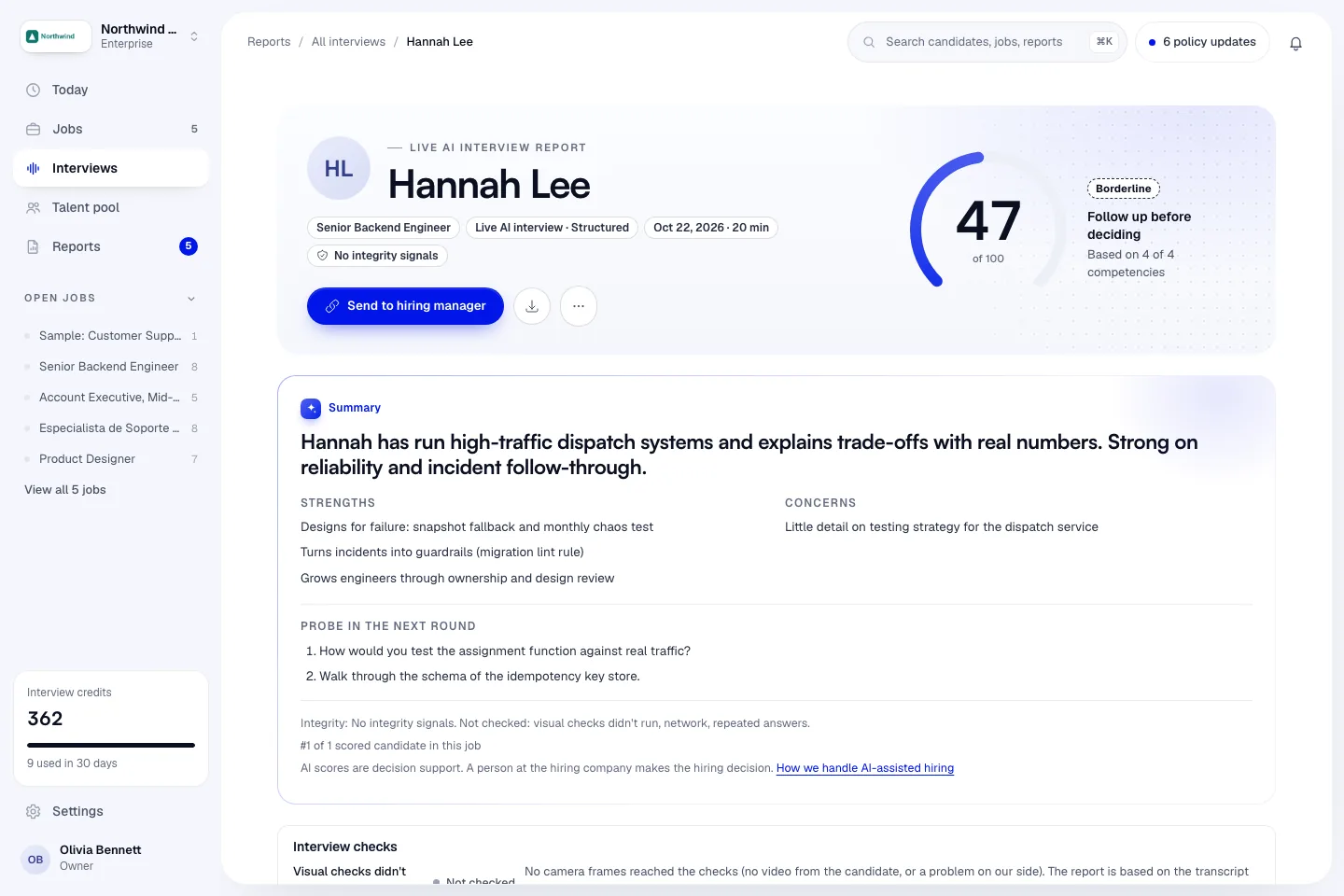
A Live AI report covers a conversation instead of separate answers. It has:
- Interview checks: the camera and window checks that ran. See Camera and window checks.
- Recording, with Download MP4.
- Transcript: click any line to jump to that point in the recording.
- Interviewer notes: timestamped notes your team adds while reviewing.
- Scorecard: the competencies, scored the same way as an AI interview.
- Behavioral signals: Communication, Problem solving, Honesty and Question asking. These are not part of the overall score.
- Skills compared with this job and Rubric coverage.
- Decision audit trail: who moved the candidate and when.
- Next-round handoff: a summary for the next interviewer, in Plain text or Markdown. Open it from More report actions.
If the interview ended after 3 window warnings or under the conduct policy, the report says so at the top. If it failed on our side, it shows Interrupted, not scored. See If Nova can't join.
In a Live AI interview, a skill can't score much higher than the answer it is based on, and repeated or recited answers add no evidence.
Record a decision from the report
The Decision bar under the header shows the candidate's stage. You can act without going back to the job:
- Click Advance to {stage} to move the candidate on.
- Or click Hold to put them on hold. Click Take off hold to undo it.
- Or click Reject. Choose a Reason, add a Note (optional, included in the decline email) and choose whether to Send a decline email. Click Reject candidate.
Rejecting cancels any interview the candidate hasn't started yet and returns its credit. The reason goes on the audit trail.
If the candidate has an open accommodation or human-review request, you must read it first. Tick I've read the open request and still want to reject. This is recorded in the audit log. to go ahead.
To undo a rejection, click Move back to Interviewed.
Send the report to a hiring manager
- On the report, click Send to hiring manager.
- Add a Note for the hiring manager (optional) if you want.
- Click Send. Every hiring manager on the job gets it, except those set to No auto-delivery.
To send it yourself instead, click Copy link next to a hiring manager under Or copy a private review link and send it yourself. Each link acts as that manager, works once and is logged.
The hiring manager gets an email with the score and a private review link. They can advance, reject or send the candidate back without an Infyva account. See Send candidates to a hiring manager.
If the job has no hiring manager yet, the dialog says so and offers Add a hiring manager.
Other actions
- Compare opens this candidate next to others, on Pro and Enterprise. On Starter it is greyed out with an Available on Pro badge. See Compare candidates.
- The download button gets the full report PDF. More report actions has Download one-page summary and Print. See PDF reports.