

Appearance
Send candidates to a hiring manager
Available onEvery plan
Who can do thisOwners, admins and recruiters
Hiring managers review candidates from a private link. They don't need an Infyva account and they aren't members of your workspace. From the link they can advance, reject or send a candidate back to you.
Add hiring managers to a job
You can add hiring managers when you create the job, or later.
- Open the job, open the More job actions menu and click Edit job.
- Under Hiring managers, click + Add hiring manager.
- Enter their Name and Email.
- Choose when they hear about candidates. On the new-job form this is When to notify; on the edit form it is the menu under their name, where Important only (recommended) shows as Important only. See the table below.
- Set the Auto-flag threshold, a score from 0 to 100. The default is 75.
- Optional: paste a Slack incoming webhook (optional) and a Teams webhook (optional) to send reports to a channel as well as by email.
- Click Save.
When you create a job, the same fields are in the Hiring managers section of the new-job form.
To take someone off a job, click Remove next to them. Removing a hiring manager also turns off their view-only links for the job.
Choose when a hiring manager is notified
| Option | What the hiring manager gets |
|---|---|
| Important only (recommended) | Reports you send them, plus candidates Infyva flags automatically (see below). |
| Daily digest | One email a day with the job's finished interviews, reviews waiting on them and new candidates. See The daily digest. |
| No auto-delivery | Nothing automatic. They get a report only when you send it and tick Also send to hiring managers who chose not to get reports automatically. |
Send a candidate from the job
- Open the job and click the candidate to open the drawer.
- On the Hiring manager review card, click Send to hiring manager. If the job has no hiring managers yet, open the More candidate actions menu and click Send to hiring manager instead.
- Optional: under Also send to, enter another person's email and Their name. Tick Add them to this job's hiring managers to keep them on the job.
- Optional: add a Note, for example why this candidate stands out.
- Tick Also send to hiring managers who chose not to get reports automatically if you want to reach people set to No auto-delivery.
- Click Send.
If the job has no hiring managers yet, the dialog asks who should review the report. Enter an email under Send to.
Only the job's owner or a workspace owner or admin can send to someone who isn't one of the job's hiring managers.
Send a candidate from the report
- Open the report and click Send to hiring manager.
- Add a Note for the hiring manager (optional).
- Click Send.
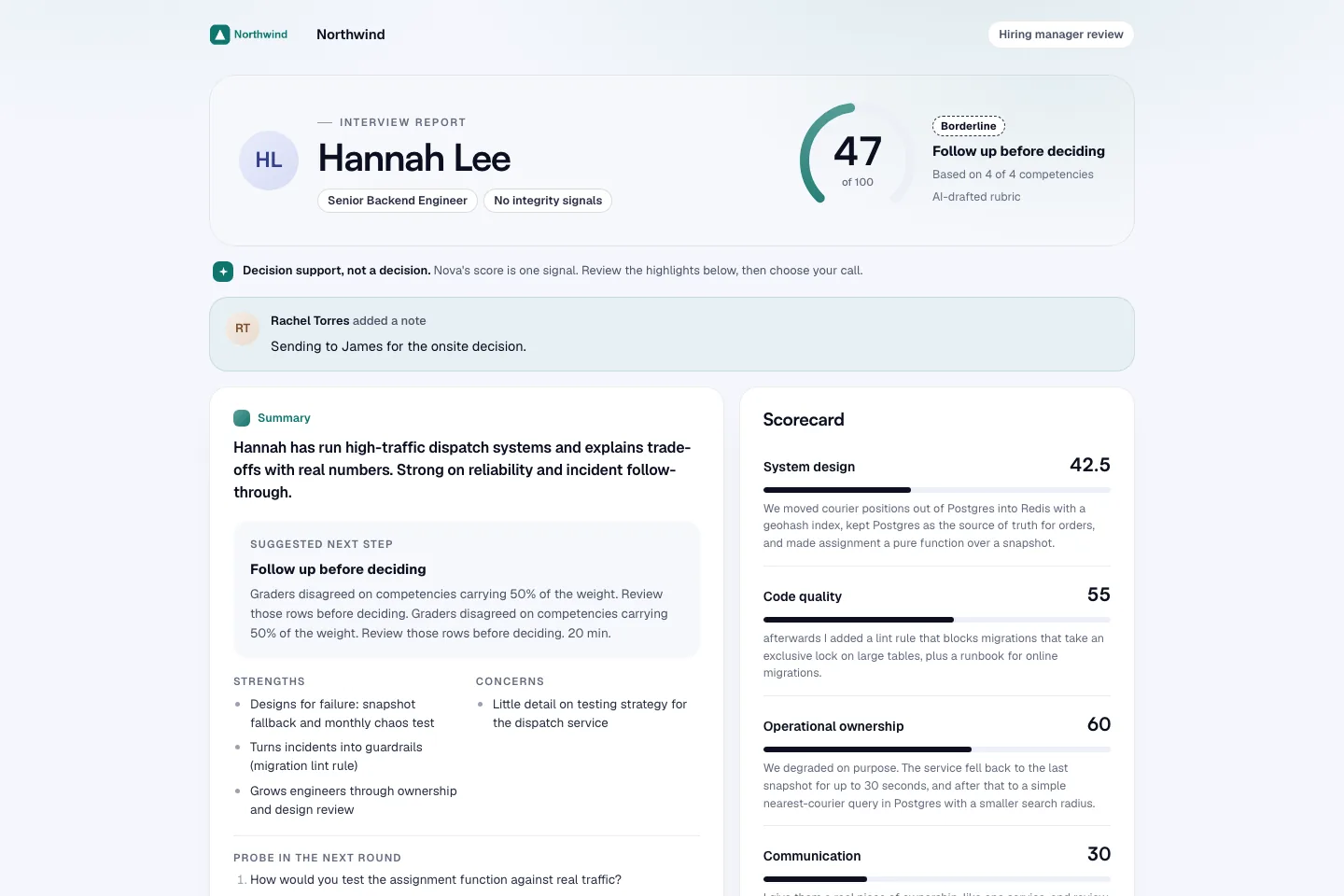
What the hiring manager gets
- An email with the subject Interview ready for your review: {candidate}, {role}, the score and a private review link. It also has a view-only link to read the report again later, valid for 30 days. A held report says so in the email.
- A Slack or Teams message, if you added a webhook for them.
Each channel is sent on its own, so if Slack is down the email still goes.
Copy a review link instead
To send the link yourself, for example in a chat:
- Open the candidate's drawer.
- On the Hiring manager review card, click Copy link next to the hiring manager.
Each link acts as that manager, works once and is logged. Review links work once there is an interview. Only the job's owner or a workspace owner or admin can copy a review link. See Review and view-only links.
Automatic sending for strong candidates
When a Live AI interview is scored, Infyva sends the report to a hiring manager on its own only when all of these are true:
- The hiring manager is set to Important only (recommended).
- The AI recommends the candidate: Hire or Strong hire.
- The score is at or above that hiring manager's Auto-flag threshold.
- The same candidate wasn't already sent to them in the last 24 hours.
The email says Auto-flagged: AI score above your threshold + strong recommendation. The drawer shows when and where it was sent.