

Appearance
Send interview invites
Available onEvery plan
Who can do thisOwners, admins and recruiters
An invite emails the candidate a personal link to their interview. They don't need an account. Sending an AI interview invite holds 1 credit, which is used only when the interview is completed.
Send an invite to one candidate
- Open the job and click the candidate.
- Click Send. If the candidate already has a report, open the menu and click Send interview or Vibe coding.
- Choose AI interview and click Continue. (Live AI interview shows here on every paid plan. Vibe coding is on Pro and Enterprise.)
- Under When, choose how to schedule. See the next section.
- Click Send invite, or Send booking link.
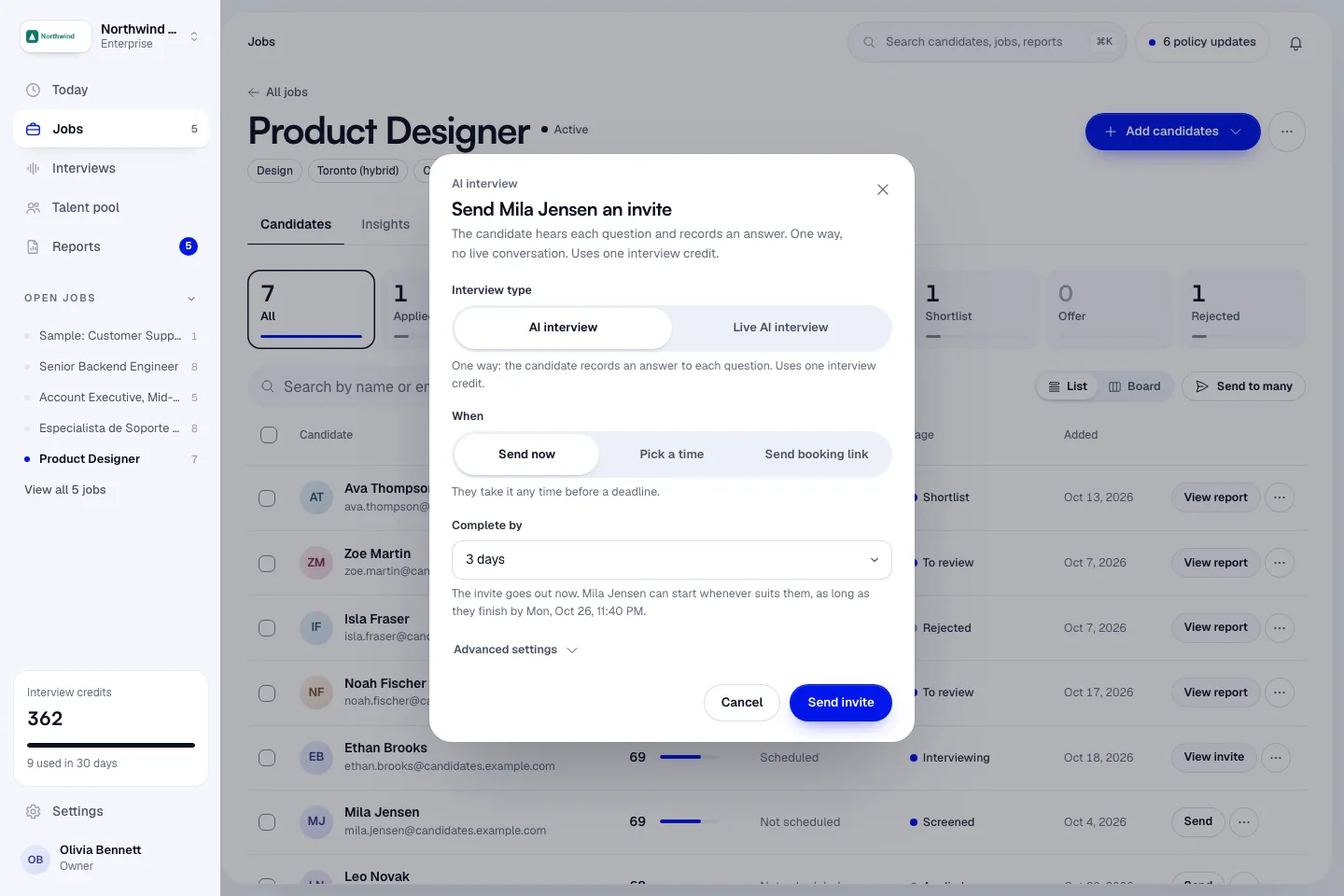
Choose when
| Option | What happens |
|---|---|
| Send now | The invite goes out now. The candidate starts whenever suits them, as long as they finish by the deadline you pick under Complete by: 1 day, 3 days (the default), 7 days or 14 days. |
| Pick a time | Choose a Date and time. The invite shows it in the candidate's time zone when Infyva knows it, otherwise in yours, always with the zone named. It is a suggested time: the candidate can start earlier or later, within the link's life after it. Tick Fixed time: the candidate can only start at this time to open the interview only at that time. |
| Send booking link | The candidate gets a link to your open slots and picks one. The interview is created when they book, and they get the join link straight away. The booking link works for 7 days. You need booking hours first: Set booking hours opens them. |
Deadlines run to the end of the last day (23:59) in the candidate's time zone, or the job's or yours when theirs isn't known. Reminders go out only for invites with a set time. See Reminders, expiry and revoking.
Change the advanced settings
Click Advanced settings in the dialog. Everything here starts from the job's defaults and applies to this invite only.
- Accommodations for this candidate: more time per answer, typed answers, no camera, or no integrity checks. See Accommodations.
- Interview time zone: the zone the time is set in. It starts as yours.
- Number of questions: up to 15. When the job asks the same set to everyone, the set decides the number.
- Interview length (total, minutes): the whole interview, reading and setup included. The dialog shows the length candidates are told.
- Link expiration (hours): from 1 to 720 hours.
- What this interview will run: a summary of the questions and settings. Click See or edit the questions to change them.
Invite many candidates at once
- On the job's Candidates tab, tick the candidates.
- Click Send on the bar at the bottom of the screen, then choose AI interview.
- Choose Send invites now or Send booking links.
- Check the list. Candidates already invited are skipped. The footer shows how many will be sent and the credits they use.
- Click Send with the count, for example Send 8 invites.
On Starter, send invites one at a time.
Send invites and reminders by text or WhatsApp
Available onEvery plan
Infyva connects the messaging provider for you.
Email always goes out. You can add text messages and WhatsApp next to it, for invites, reminders and booking links.
Infyva connects the text and WhatsApp lines for your workspace. If Settings > Integrations shows them as Not connected, click Ask to connect, or email support@infyva.ai. Email invites work in the meantime.
Once a line is connected, turn it on for each job:
- Open the job and click Settings > Job settings.
- Under Text, WhatsApp and phone, turn on Text message invites and reminders, WhatsApp invites and reminders, or both.
- Choose what to send: Interview invites, Reminders (24 hours and 1 hour before) and Booking links.
- Set Quiet hours. The default is 21:00 to 08:00 in the candidate's time zone.
These settings save as you change them. Messages never use credits.
Consent to texts
Messages go only to candidates who agreed to them, never during quiet hours, and every message offers STOP to opt out. A candidate agrees when you tick They agreed to receive text messages about this application while adding them, or when they agree on your careers page. See Add candidates.
Ask knock-out questions by text
Under Text, WhatsApp and phone, turn on Knock-out questions by text. Add up to 5 yes or no questions, such as "Are you authorized to work in the United States?", and choose Meets on yes or Meets on no for each. They go by text before the interview, in the job's language. Candidates can answer in their own words.
The answers show on the candidate. Nobody is rejected automatically. Tick Text the questions as soon as a careers-page applicant agrees to texts to send them on their own.
Let candidates take the interview by phone
Infyva connects the phone line too. If you don't see the phone option, ask us to turn it on at support@infyva.ai.
- Under Text, WhatsApp and phone, turn on Let candidates take the interview by phone.
- Optional: tick Call candidates at their booked time (only those who chose a call), and Ask for the last 4 digits of their number before starting a call we placed.
Candidates with a phone number on file get a number to call and a PIN in their invite. It is the same questions, the same report and the same credit. Camera and browser checks don't run on a call, and the report says so. Jobs with coding questions stay web only.