

Appearance
Set up interview questions
Available onEvery plan
Who can do thisOwners, admins and recruiters
Every job has its own questions. You can ask every candidate the same set, or let AI write a new set for each candidate from the job description and their resume. Writing questions is free and never uses a credit.
To open the questions, go to the job, click the Settings tab, then Questions.
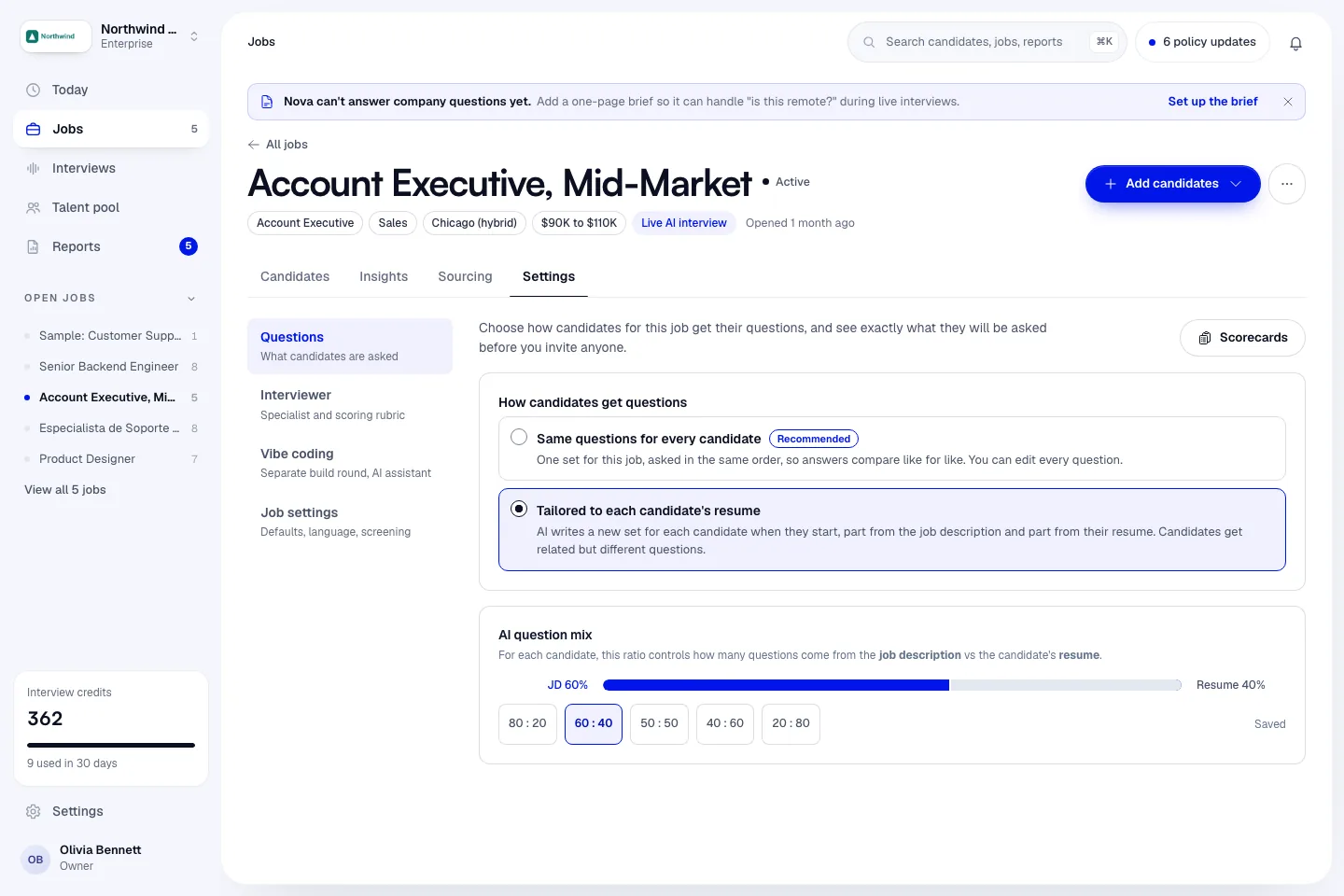
Choose how candidates get questions
Under How candidates get questions, pick one:
| Option | What happens |
|---|---|
| Same questions for every candidate (Recommended) | One set for the job, asked in the same order, so answers compare like for like. You can edit every question. New jobs use this. |
| Tailored to each candidate's resume | AI writes a new set for each candidate when they start, part from the job description and part from their resume. Candidates get related but different questions. |
With tailored questions, the AI question mix card sets how many questions come from the job description and how many from the resume. Pick a preset (80 : 20, 60 : 40, 50 : 50, 40 : 60 or 20 : 80) and click Save.
Write the question set
With Same questions for every candidate, the What each candidate gets card shows the set.
- If the set is empty, click Write the questions. It takes about 30 seconds.
- Read each question. Open What a strong answer covers under a question to see the points used for scoring. Candidates don't see these.
- To replace the whole set, click Draft a new set.
If you invite someone before writing a set, Infyva writes a short set from the job description first. Edits apply to invites you send from then on, not to interviews already sent.
A set holds up to 15 questions. The heading shows the count, for example The set (5/15).
Edit, delete or add a question
- To edit a question, click the pencil next to it, change the text and click Save.
- To delete a question, click the bin next to it.
- To add your own, go to Add a question to the set. Write one clear question of about 40 words or fewer, choose a Category (General, Technical, Behavioral or Situational) and a Difficulty (Easy, Medium or Hard), then click Add question.
When the set has 15 questions the button reads Set full. Delete or swap a question to add another.
Get more question ideas
More question ideas writes about 10 extra questions from the job description. They are not asked unless you add them to the set.
- Under More question ideas, choose a Difficulty.
- Choose Coding questions: Auto (on for technical roles), No or Yes. Coding questions are on Pro and Enterprise. On Starter this choice is greyed out.
- Click Generate ideas. This usually takes 30 to 60 seconds.
- Under Question ideas, add an idea to the set or swap it with a question already there.
Once ideas are generated for a job, the button reads Already generated.
Ask coding questions inside the AI interview
Coding questions are short code questions inside the AI interview, answered in a code editor. The candidate writes code instead of speaking and clicks Submit answer when done.
The editor offers Python, JavaScript, TypeScript, Java, C++, C#, Go, Rust, SQL, HTML and CSS.
For a longer, hands-on task with an AI assistant, use a Vibe coding round instead. Jobs with coding questions can't be taken by phone.
Choose the interview language
Interviews run in 20 languages. Set the language under Settings > Job settings > Interview language:
English, Spanish, French, German, Portuguese (Brazil), Italian, Dutch, Polish, Arabic, Hindi, Japanese, Korean, Chinese (Simplified), Turkish, Indonesian, Vietnamese, Tagalog, Russian, Ukrainian and Swedish.
Questions are written in that language from the start, the interviewer speaks it, answers are transcribed in it, and every candidate screen and email uses it. Reports stay in English, with translated answers next to the originals.
Let candidates choose the language
- Under Interview language, turn on Let candidates choose the language.
- Tick the languages candidates may choose from. The main language is always included.
- Click Save settings.
Candidates pick a language before the interview starts. Invites and reminders still use the main language. Live AI interviews have no choice and always run in the main language.
Set the interviewer style and scoring rubric
Click Settings > Interviewer to see the Interview brief for the job.
- Interview style sets how the interviewer asks: tone, depth, pace and what it never asks about for that kind of role. There are styles for general, technical, healthcare, sales and other kinds of roles. Click Recommend to get a suggestion for the job, then Use this.
- Scoring rubric shows what every interview for the job is graded on. Each competency gets its own score with evidence, and the overall score is their weighted average.
By default a job is graded on its own competencies, listed under Job settings > About the role > What the interview assesses (up to 8). To edit them, click Edit competencies.
Build a reusable scorecard
- On the Questions section, click Scorecards. Or go to Settings > Scorecards.
- Click + New scorecard.
- Start from a template or enter a Scorecard name, then add the competencies and their weights. The weights must add up to 100%.
- Tick Set as organization default to make it your workspace's default scorecard.