

Appearance
Connect Greenhouse
Who can do thisWorkspace owners and admins connect. Everyone on the team can import jobs.
Import Greenhouse jobs and candidates into Infyva, send the Infyva interview when a candidate reaches a stage you choose, and send stage moves and a scorecard back to Greenhouse.
Before you start
You need:
- A Pro or Enterprise plan, or the Pro trial.
- The Owner or Admin role in Infyva.
- Access in Greenhouse to create Harvest API keys and web hooks (usually a Greenhouse site admin).
- If you want results written back: the numeric user ID of the Greenhouse user that Infyva should act as.
Part 1: Create a Harvest API key in Greenhouse
- In Greenhouse, go to Configure, then Dev Center, then API Credential Management.
- Create a new key and choose Harvest as the API type.
- Give the key access to Jobs, Candidates, Applications and Scorecards.
- Copy the key. Keep it somewhere safe until you paste it into Infyva.
Greenhouse's own guide: Create an API key in Greenhouse Recruiting.
Part 2: Connect Greenhouse in Infyva
In the sidebar, click Settings, then Integrations.
On the Greenhouse card, click Connect.
Fill in the Connection form:
Field What to enter Harvest API key (required) The key from Part 1. Greenhouse user ID for write-back Greenhouse records stage moves, notes and scorecards as this user, for example 4080123. Leave it blank to import only.Webhook secret key The secret you set on the Greenhouse web hook in Part 4. You can add it later. Click Test connection. Infyva checks the key and stores nothing yet.
Click Connect. Infyva runs the same test again and saves the connection.
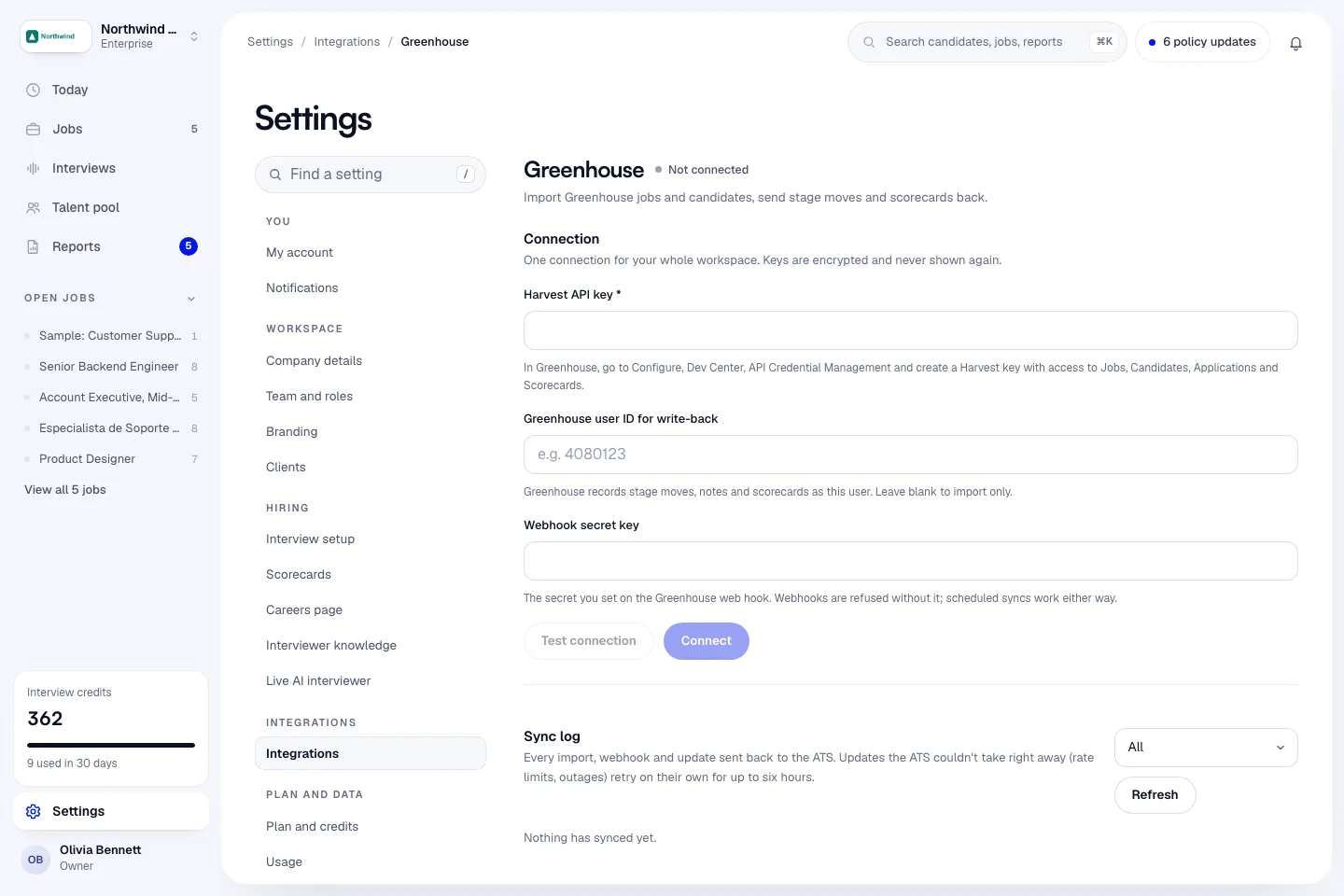
The key is encrypted and never shown again. After connecting, the Connection panel shows:
- Connected: the date you connected.
- Write-back: On if you entered a write-back user, otherwise Off. Reconnect and add the ATS user to act as, so updates can be written back.
- Webhook URL: the address for Part 4, with a Copy button. Only owners and admins see it.
- Last sync: when the last job was imported and how many candidates were new.
To change the key or add the write-back user later, click Update credentials. The secret fields start empty: enter the Harvest API key again, and the Webhook secret key too if you use one. A secret you leave blank is removed when you click Connect.
Part 3: Import jobs and map stages
The Jobs in Greenhouse panel lists your open Greenhouse jobs. Click Refresh to reload the list.
Import a job
- Next to a job, choose New Infyva job, or choose Map to: and an Infyva job you already have.
- Click Import. Infyva brings in the job's candidates.
Import again at any time with Sync now to pull in new candidates. Nobody is imported twice: Infyva matches on the Greenhouse application, then the Greenhouse candidate, then the email address.
Map stages
- Next to the job, click Stage mapping.
- For each Infyva stage, pick the Greenhouse stage to move the candidate to. Leave Match by name to use the closest stage name, or pick Don't move in the ATS.
- Click Save mapping, or Save and import if the job is not imported yet.
Send the interview automatically
In the same mapping panel, set Send the Infyva interview when a candidate reaches to a Greenhouse stage. Candidates already at that stage are invited on the next sync. Each candidate is invited once. Choose Don't send automatically to turn it off.
How often it syncs
Without a web hook, mapped jobs re-sync every six hours and whenever you click Sync now. With the web hook from Part 4, new candidates and stage changes sync within a minute.
Part 4: Add the web hook for faster sync (optional)
- In Infyva, on the Greenhouse page, click Copy next to Webhook URL. The URL ends in
/api/v1/ats/webhooks/greenhouse/followed by a token that is unique to your connection. - In Greenhouse, go to Configure, then Dev Center, then Web Hooks, and create a web hook.
- Paste the URL as the endpoint URL.
- Make up a long random value and enter it as the Secret key.
- Back in Infyva, click Update credentials, enter your Harvest API key again, paste the same value into Webhook secret key and click Connect.
Greenhouse signs each delivery with a Signature: sha256 <hex> header, an HMAC-SHA256 of the request body made with your secret key. Infyva checks it on every delivery.
Good to know:
- Webhooks are refused until the connection has a secret. The page shows Add your webhook secret. until you add one. Scheduled syncs keep running in the meantime.
- Any event type works. Infyva does not trust the event's contents: it reads the affected job again from Greenhouse with your key.
- The test ping Greenhouse sends when you create the web hook shows in the Sync log as Webhook ping received.
- The same delivery received twice within 24 hours is ignored.
What Infyva writes back
Write-back needs the Greenhouse user ID for write-back. Greenhouse records every update as that user. Write-back goes only to candidates that came from Greenhouse.
| When | What Greenhouse gets |
|---|---|
| An interview is scheduled | A note: the AI interview is scheduled, and the candidate has their join link. |
| The candidate finishes | A note: the interview is completed, and the score and report follow. |
| The report is ready | A scorecard named Infyva AI Screen with an overall recommendation based on the score, the summary and a link to the Infyva report. |
| You move a candidate in Infyva | A stage move, following your stage mapping. |
If a report is corrected after review, the new result replaces the old one and its summary starts with "Corrected after review."
Check the Sync log
The Sync log at the bottom of the page lists every import, webhook and update sent back to Greenhouse. Filter it with All, Failed, Retrying or Sent, and click Refresh to reload.
An update Greenhouse can't take right away, for example because of a rate limit or an outage, retries on its own after 1 minute, 5 minutes, 30 minutes, 2 hours and 6 hours. If Greenhouse rejects the key, the update fails at once with a message to reconnect with a valid key. Click Retry on a failed update to send it again.
Disconnect Greenhouse
- On the Greenhouse page, click Disconnect.
- To also remove imported candidates who never had an interview, tick Also delete imported candidates who never had an interview.
- Click Disconnect.
The saved credentials are deleted and nothing more is sent to or read from Greenhouse. Imported jobs and candidates are unlinked, and stored resume links from Greenhouse are removed. Interviews and reports stay in Infyva. If your plan stops including ATS integrations, these controls are greyed out with an Available on Pro badge, so disconnect before you change plans.