

Appearance
Quickstart: your first job in 10 minutes
Available onEvery plan
Who can do thisOwners, admins and recruiters
This walks you from an empty workspace to a finished report. You need a job description to paste. Nothing here uses a credit until a real candidate finishes an interview.
1. Create the job (2 minutes)
- In the sidebar, click Jobs, then Create job.
- Enter the Job Title and paste the Job Description.
- Optional: open Advanced settings, click Add hiring manager and enter their Name and Email.
- Click Create job.
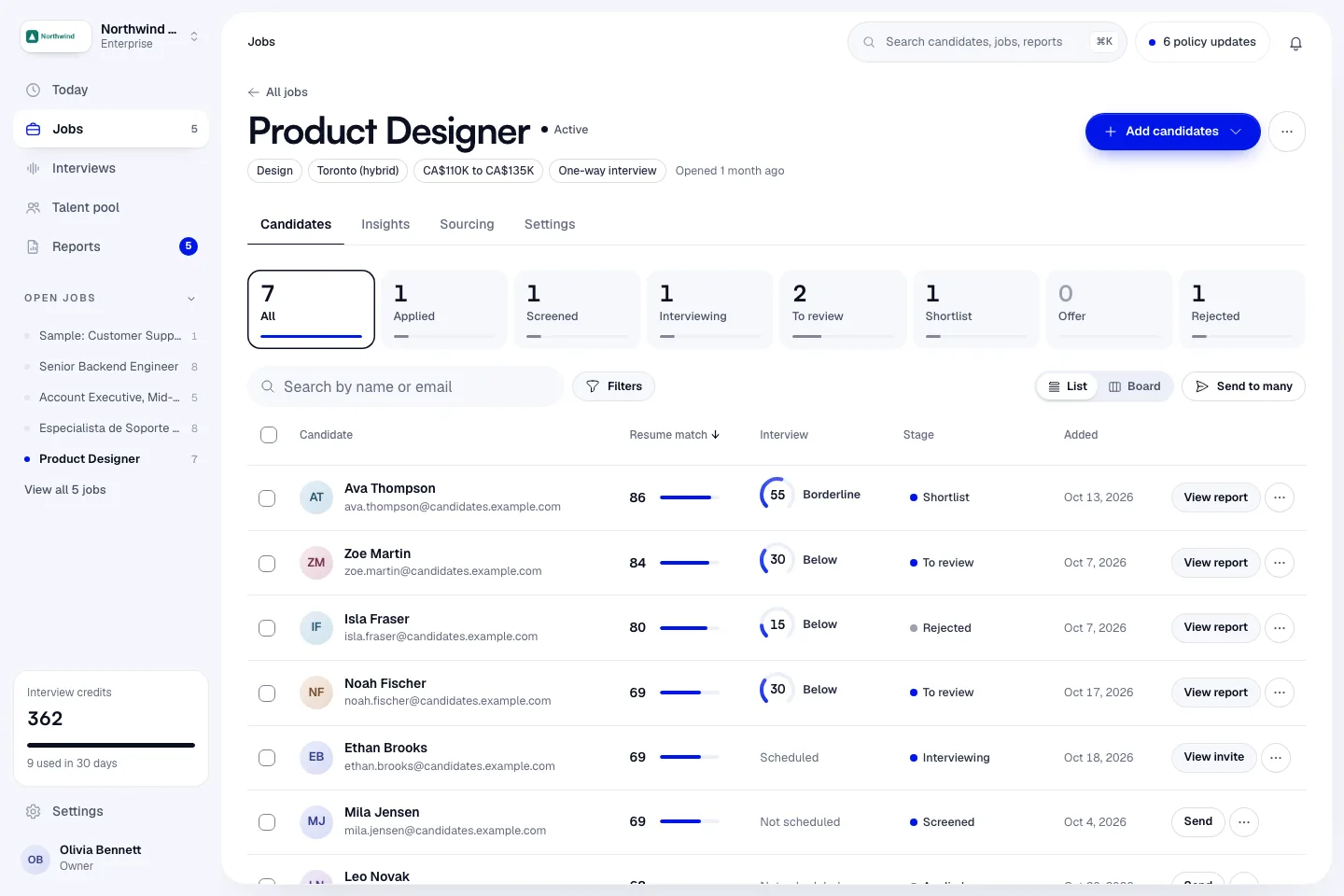
The job opens on its Candidates tab.
2. Check the questions (2 minutes)
- On the job, click the Settings tab. Questions opens first.
- If the set is empty, click Write the questions. It takes about 30 seconds and is free.
- Read each question. Click the pencil to edit one, or the bin to delete it. Add your own with Add a question to the set.
Under Job settings you can change the Number of questions, the Interview length (total, minutes), the Language, and whether candidates answer by Voice or Video (one-way). The defaults are 5 questions in 30 minutes, by voice. See Interview settings.
3. Try it as a candidate (3 minutes)
- On the job, open More job actions and click Try it as a candidate.
- Click Start the interview and answer 3 short questions.
You get a report badged Self-test. It doesn't use a credit and is left out of analytics. Your workspace can take 2 self-tests a month.
4. Invite a candidate (1 minute)
- Click Add candidates > Add one candidate. Enter a Full name and Email, attach a resume if you have one, and click Add candidate.
- On the candidate's row, click Send, choose AI interview and click Continue.
- Leave Send now selected and pick Complete by: 3 days is the default.
- Click Send invite.
The candidate gets an email with a private link. One credit is held from your balance and comes back if they don't finish. See Send interview invites.
5. Read the report (2 minutes)
When the candidate finishes, the report is usually ready within a few minutes. Open it from the candidate, or from Reports in the sidebar.
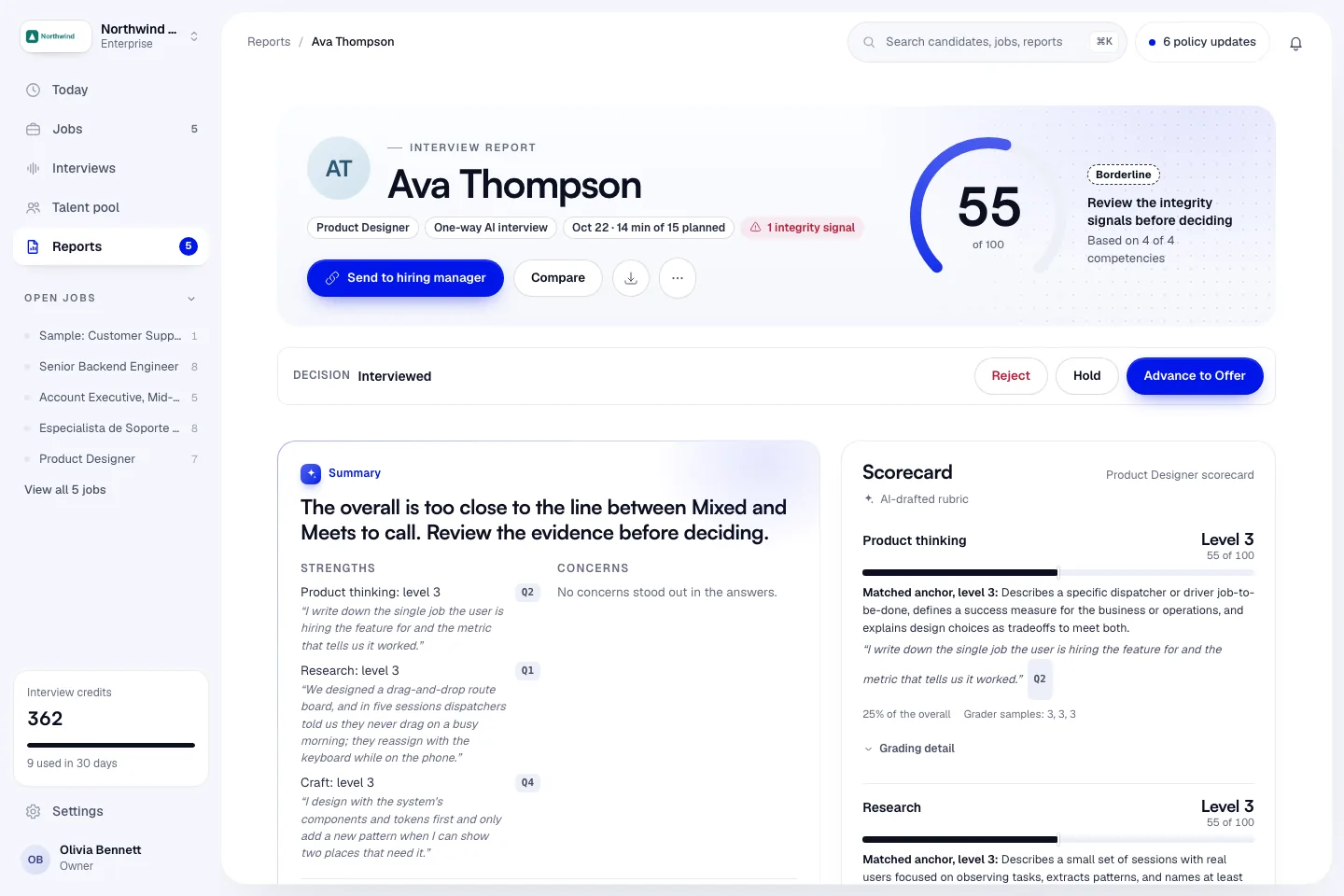
Start with the band and the Summary, then check the Scorecard, the Integrity section and the answers themselves. See Read a report.
6. Share it with the hiring manager
- On the report, click Send to hiring manager.
- Add a note if you like, and click Send.
The hiring manager gets an email with the score and a private link. They can Advance, Send back or Reject without an Infyva account. See Send candidates to a hiring manager.