

Appearance
Add candidates
Available onEvery plan
Who can do thisOwners, admins and recruiters
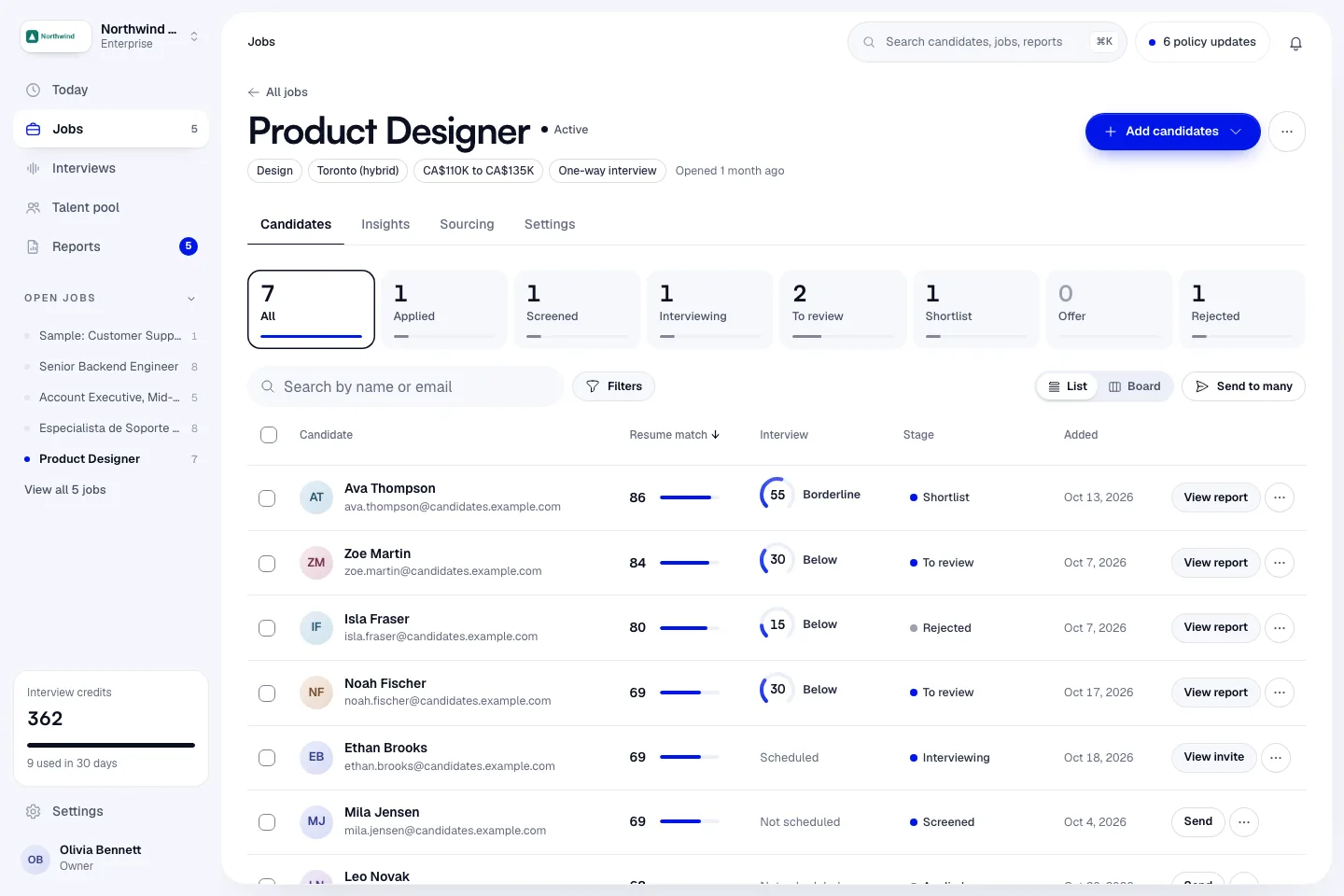
Every way to add people starts from the Add candidates button at the top of a job. Candidates never need an Infyva account: they get a link by email.
Add one candidate
- Open the job and click Add candidates > Add one candidate.
- Enter the Full name and Email. That is enough to invite them.
- Optional: enter a Phone number with the country code, for example +1 for the US or +44 for the UK.
- If they agreed to texts about this application, tick They agreed to receive text messages about this application and say how in How did they agree?. Without this, Infyva never texts them.
- Optional: attach a Resume, PDF or Word (.docx), up to 10 MB.
- Click Add candidate.
If the email is already on the job, Infyva tells you and offers Open their profile.
Upload resumes
Each resume becomes a candidate on the job. Processing runs in the background.
- Open the job and click Add candidates > Upload resumes.
- Drop PDF or Word (.docx) files, or a ZIP of resumes. Save older .doc files as .docx or PDF first.
- Click Upload (the button shows the number of files, for example Upload 12 files).
The dialog shows how many uploads your company has used this month and how many are left. The limit is shared by everyone in the workspace, not set per user. Each resume counts, including each one inside a ZIP.
| Plan | Resume uploads a month |
|---|---|
| Starter | 10 |
| Pro | 50 |
| Enterprise | Unlimited |
| Pro trial | 50, the same as Pro |
Limits for one upload:
- Up to 200 resumes and 100 MB in total.
- Each resume can be up to 10 MB. Larger files are skipped.
- A ZIP can be up to 25 MB and hold up to 200 resumes.
When you reach your monthly limit, the upload stops with Monthly bulk upload limit reached and a link to the plans.
Every plan gives each resume a match score when scoring is on for the job. Full ranking is on Pro and Enterprise. See Resume screening and ranking.
Import a CSV list
Available onEvery plan
Use this for lists your company already holds, such as event sign-ups or an export from another recruiting tool. Infyva doesn't scrape websites.
- Open the job and click Add candidates > Import a CSV list. This opens the Sourcing tab.
- Under Import a candidate list, click Download a template if you need the column layout.
- Click Choose a CSV file and pick your file. Each person needs an email address. A file can hold up to 2,000 people.
- Check the preview. It shows how many people were found and how many have an email address.
- Optional: tick Also add them to the talent pool and add a tag.
- Tick the statement that starts I confirm that my company may use these people's details for recruiting. It is saved with the import.
- Click Import (the button shows the number, for example Import 120 into this job).
The result says how many were added, how many were already on the job, and how many were skipped for having no valid email. Imported people have no resume, so they aren't screened until one is added.
Import from your ATS
Connect your applicant tracking system and candidates sync into the matching Infyva job. On the Jobs page, click Import from your ATS, or go to Settings > Integrations. See Integrations.
Collect applicants from your careers page
Publish a careers page and anyone who applies joins the job straight away. See Publish a careers page.