

Appearance
Branding and white label
Who can do thisOwners and admins
Branding puts your logo, colour and name on everything candidates see. Your team's app keeps the Infyva look.
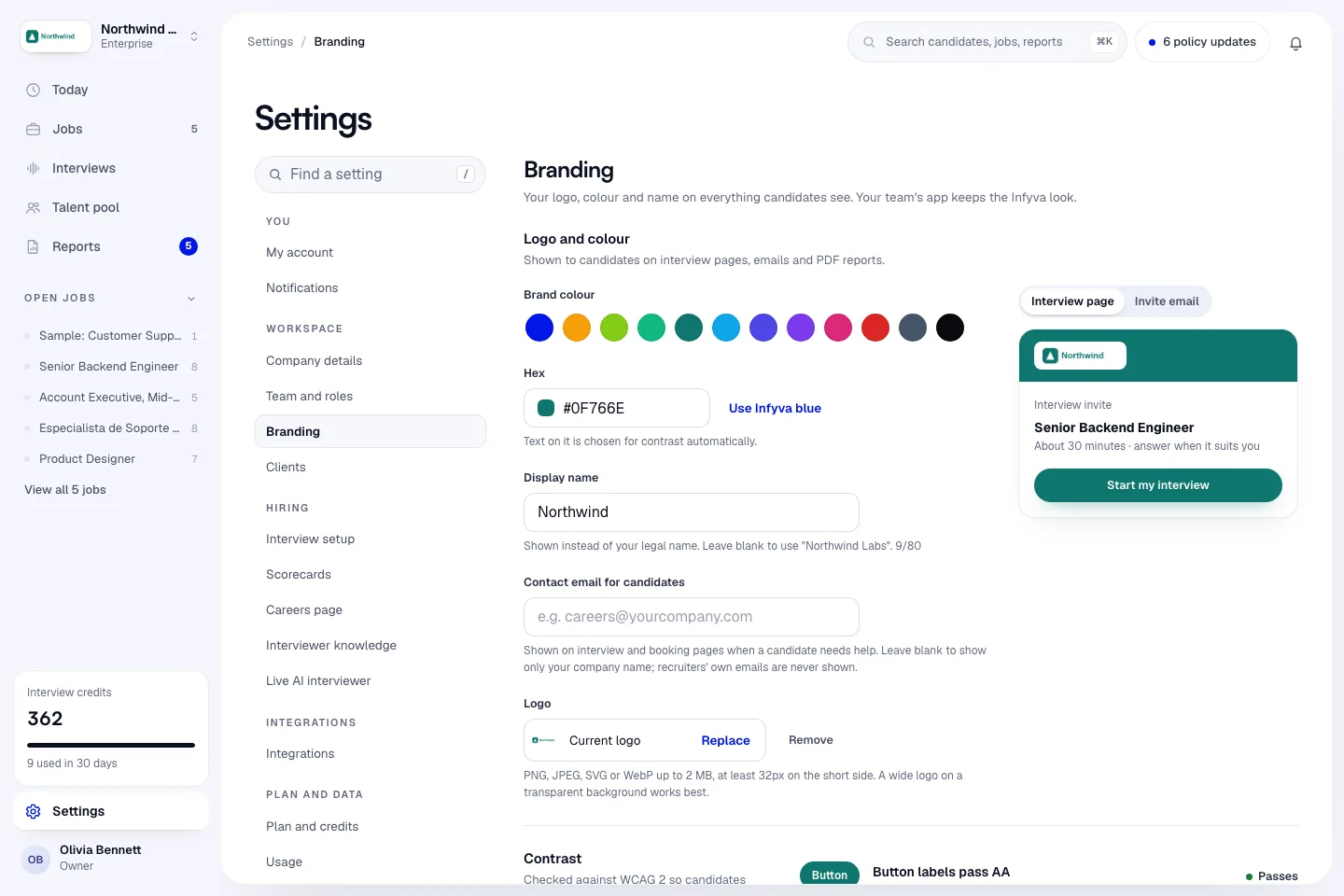
Set your logo, colour and name
- In the sidebar, click Settings, then Branding.
- Under Brand colour, pick a preset or type a Hex value. Use Infyva blue sets it back to the default.
- In Display name, type the name candidates see, up to 80 characters. Leave it blank to use your company name.
- In Contact email for candidates, add an address candidates can write to, such as a careers inbox. Leave it blank to show only your company name. Recruiters' own emails are never shown.
- Under Logo, click Upload. Use a PNG, JPEG, SVG or WebP up to 2 MB. A wide logo on a transparent background works best.
- Check the preview of the Interview invite and the invitation email beside the fields.
- Click Save changes.
Saved changes reach candidates right away: new emails and every page load after you save. Emails already sent keep the branding they were sent with.
To undo unsaved edits, click Discard.
Check the colour's contrast
The Contrast section checks your colour against WCAG 2 so candidates can read every button and link:
- Button labels pass AA means the text on your buttons is readable. Infyva picks white or dark text for you.
- Readable on white means links and borders show clearly on a white page. If your colour is faint, links and small text use a darker shade of it.
If neither white nor dark text reaches 4.5:1 on your colour, the page tells you to try a darker or lighter shade.
Where your branding shows
| Where | What it covers |
|---|---|
| Candidate interview pages | The invite, consent, interview room (AI interview, Live AI and coding) and the thank-you page. |
| Emails to candidates | Invites, reminders and completion emails. |
| Hiring manager link and PDF reports | The shared review page and exported reports. See PDF reports. |
Without white label, Infyva appears only as a small Powered by Infyva line.
Reset to the default
- Open Settings > Branding.
- Under Reset to default, click Reset branding.
This removes your display name, colour and logo. Candidates see standard Infyva branding again.
Remove Infyva branding with white label
Available onEnterprise
Who can do thisOwners and admins
With white label, candidates don't see Infyva anywhere. The Branding page says Your plan includes white label, so candidates won't see Infyva anywhere.
White label removes:
- The Powered by Infyva line on candidate pages and emails.
- Infyva marks on the hiring manager page and the browser tab title.
- Infyva branding from PDF reports, which show your company only.
Candidate privacy notices show your Contact email for candidates in place of Infyva's privacy address, so set one. If you leave it blank, the notices keep Infyva's address.
White label is part of Enterprise. It turns on with the plan; there is nothing to switch on. If you run an agency, you can choose per client whether Powered by Infyva shows. See Client branding for agencies.